


Download Android Texts to PC Cloud
Learn how to download texts from Android using Google Backup, third-party apps, or PC software. Our guide makes it easy to save or transfer your messages.
 Editorial
Figuring out how to download texts from your Android phone is one of those things you don't think about until it's too late. It’s absolutely crucial for protecting your important conversations, whether you need them for legal records, you're switching to a new phone, or you just want some peace of mind.
Why You Should Download Your Android Texts Today
Your text threads are more than just quick chats—they’re a digital history of your life. For many of us, these messages hold real personal and professional weight. Thinking about why you should download them now helps you see how important a solid backup is before disaster strikes.

I've seen it happen too many times: a phone gets stolen, and years of messages from a loved one are gone forever. Or a device suddenly dies, taking a business deal confirmed over text with it. These aren't just hypotheticals; they happen every day.
Protecting Critical Information
For professionals who rely on advanced devices like a Samsung Galaxy Z Fold or Google Pixel Fold, texts often contain client updates, project approvals, and other business-critical records. A downloadable, printable copy can be a lifesaver for accountability.
Think about a few real-world scenarios where a backup is essential:
- Legal and Business Needs: Exported messages can serve as official records for legal cases, business agreements, or financial disputes.
- Upgrading Your Phone: When you finally get that new device, a clean backup is the only way to ensure a seamless transfer of your entire message history.
- Device Loss or Repair: If your phone is lost, stolen, or needs a factory reset, a backup is your only safety net to get those conversations back.
- Saving Your Memories: Let's be honest, many texts are simply irreplaceable. They hold sentimental value from conversations with family and friends you can't get back.
Ultimately, the biggest benefit is peace of mind. When your important data is stored safely elsewhere, a broken or lost phone is just an inconvenience—not a catastrophe.
Proactive Data Management
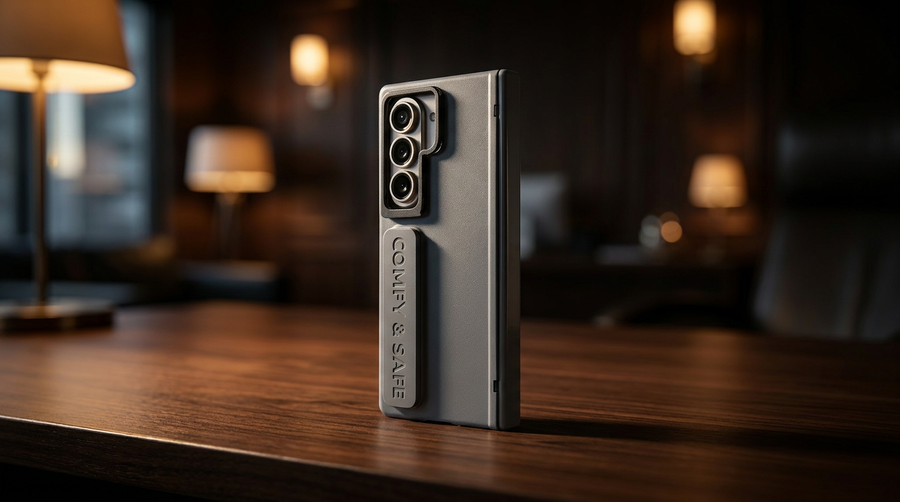
Spending a few minutes downloading your texts is a smart, proactive move for your digital security. A professional in a tough environment, like construction, might trust a durable FoldifyCase with hinge protection to keep their device safe. But even the world's toughest case can't stop a software bug or an accidental deletion.
This is where a good text backup strategy becomes your digital insurance policy. It gives you access to your communication history completely independent of your phone, putting you back in control. Instead of waiting for an emergency, make backups a simple, routine part of managing your data.
The Set-It-and-Forget-It Google Backup Method
For anyone who just wants a simple, hands-off way to keep their messages safe, Google’s built-in backup is your best friend. Think of it as a silent insurance policy for your phone, working in the background to protect your data without you having to lift a finger. It’s the perfect tool to make sure you don't lose years of conversations when you upgrade to a new device.
The whole point of this feature is to make switching phones painless. When you sign in to your Google account on a new Android phone, it immediately asks if you want to restore your data from a backup. This syncs your SMS history, call logs, app data, and device settings, essentially cloning your old phone’s digital life onto the new one.
Getting it running is incredibly straightforward. Just head into your phone’s main settings menu. The exact path can differ a bit between manufacturers, but you'll almost always find it under:
- Settings > Google > Backup
Once you’re there, just make sure the “Back up to Google One” toggle is switched on. You'll see exactly how much storage you're using, what’s being backed up, and when the last successful backup happened. The entire process is designed to be completely invisible.
How Automatic Backups Work
Your phone isn't constantly backing up, which is good—that would kill your battery and eat through your mobile data. Instead, it waits for the perfect, most convenient moment to do its job. Google’s system triggers a backup automatically only when your device is:
- Connected to a Wi-Fi network.
- Plugged in and charging.
- Has been idle for at least two hours.
This smart system ensures your backups happen overnight or during other downtimes, so it never gets in your way. Of course, if you want to force a backup right before switching phones, you can always hit the “Back up now” button on that same screen.
This method is less about creating a downloadable file of your texts and more about guaranteeing a full, one-to-one restoration on a new Android phone. It's the essential first step for basic data security.
This kind of integrated backup has become non-negotiable, especially with the sheer amount of communication we handle. In 2026 alone, Google reported over 2.5 billion Android activations, with global text messaging volume soaring past 23 trillion messages annually. This shows just how vital tools that export to Google Backup are, particularly for users of powerful devices like the Z Fold who are often juggling demanding work with accessories like magnetic keyboard cases. You can explore more about how these trends are shaping the mobile industry.
While the system is perfect for standard SMS messages, you need to know its limits. These backups primarily cover plain text messages. They don’t always include MMS (photos and videos) or conversations from third-party apps like WhatsApp or Signal. For those, you’ll have to dive into each app’s own backup settings, which usually involves a separate sync to Google Drive.
By flipping this one switch, you get a powerful safety net, ensuring your most important conversations are always protected and ready for your next device.
Get Flexible Exports with Third-Party Apps
Google's built-in backup is a great safety net, but what if you need more control? Sometimes you need to pull your texts out in a specific format or save them somewhere other than Google's cloud.
This is where third-party apps come in. They give you the power to actually download texts from android and turn them into usable files you can store anywhere.
A long-time favorite in the Android community is SMS Backup & Restore. It's not just popular; it's a staple. As of early 2026, it's flown past 10 million downloads on the Play Store, with over 500,000 reviews holding a solid 4.5-star average. That tells you a lot of people need more than what the default tools offer.
Getting started is straightforward. You download the app, give it permission to see your messages and files, and you're ready to take full control.
Choosing Your Export Format and Location
The real power of an app like SMS Backup & Restore lies in its flexibility. You can choose exactly how and where you save your conversations. Each format has a different job.
Here are the choices you’ll have:
- XML (Extensible Markup Language): This is your go-to format for a perfect restore. If you're moving to a new phone or just wiped your current one, an XML file lets the app put everything back exactly as it was—timestamps, read status, and all.
- PDF (Portable Document Format): Need a printable, easy-to-read copy? This is it. PDF is perfect for legal records, work documentation, or just creating an archive that anyone can open on any device without special software.
- CSV (Comma-Separated Values): This option turns your message history into a spreadsheet. It's surprisingly useful for anyone who wants to search through thousands of texts for a specific word or analyze their communication patterns.
After you pick a format, you choose a destination. Save it to your phone's internal memory, pop it onto an SD card, or even use a USB OTG adapter to offload it to an external flash drive. Using Android USB OTG is a great trick for moving large files without a computer.
This chart breaks down the differences between relying on Google and using a dedicated app.

As you can see, Google provides a seamless "set it and forget it" sync. Third-party apps, on the other hand, put you in the driver's seat, giving you complete say over your data's format and final destination.
Automating Your Custom Backups
Manual exports are great, but these apps also let you automate the process. You can schedule backups to run daily, weekly, or monthly.
Even better, you can have the app automatically send your new backup file to a cloud service you already use, like Google Drive, Dropbox, or OneDrive.
This approach gives you the best of both worlds: automated protection without sacrificing control over your data. You create a system that works for you, ensuring your texts are always safe and accessible.
This idea of taking control of your digital communications isn't just for text messages. For example, learning to export Slack conversation data follows a similar principle of managing important records from different platforms. By using a third-party app for your texts, you're taking full command of your personal data history.
Transferring and Managing Texts on Your PC
Sometimes, managing years of text messages on a tiny phone screen just doesn't cut it. For serious archiving or just the comfort of a full-size keyboard and monitor, dedicated desktop software is the way to go. Programs like Droid Transfer or MobileTrans act as a command center, letting you download texts from android directly to your computer.
This approach gives you a level of control that phone-only apps can't really touch.

The setup is pretty straightforward. You’ll install the main program on your Windows PC or Mac, then grab a small companion app for your Android. From there, you can link them up over your local Wi-Fi or go old-school with a USB cable for a faster, more stable connection.
Browsing and Archiving on Your Desktop
Once you’re connected, your entire message history populates right on your computer screen in a clean, easy-to-read layout. This is where you see the real power. You can scroll through years of conversations without your thumb getting tired, use a search bar to pinpoint that one specific message, and see all your media clearly.
This method is a lifesaver for professionals. Say you need a printable record of a client negotiation that happened over text. Instead of taking a dozen screenshots and piecing them together, you can select the whole conversation and export it in one click.
Most of these programs give you a few handy export formats:
- PDF: This creates a clean, professional document that’s perfect for printing or for legal records.
- HTML: This option saves your conversations as a web page, keeping the familiar chat-bubble style. It’s a great way to see your texts just as they looked on your phone.
- Plain Text: For pure, no-frills data, this exports just the text itself. It's ideal for simple archiving or importing into another application.
You can see how popular this is just by looking online. YouTube tutorials from companies like Wondershare have racked up over 500,000 views since 2024, walking users through installing the app, connecting to their PC, and saving entire threads as PDFs in just a few seconds.
Using PC software turns your message history from a simple list on a small screen into a powerful, searchable database. It’s the definitive way to manage and preserve your communications long-term.
When to Choose PC Software
While other methods are great for a quick backup, PC software really shines in certain situations. It’s the best choice if you need to print text message conversations, create robust archives for business or legal purposes, or if you simply prefer managing your digital life on a computer.
Think of it as a full-featured command center for all your messaging data. Once your texts are safe on your PC, it’s a good time to think about a broader backup strategy. For a complete approach, check out our guide on how to backup your Android phone to a PC. By combining these techniques, you can ensure every part of your digital life is secure and accessible when you need it.
Keeping Your Data Secure During a Transfer
Let's be real—your text messages are a digital diary of your life. When you're moving them from your phone, keeping those private conversations private is just as important as the backup itself. A few simple precautions can make all the difference.
Your connection is the first place you can get exposed. Always handle your transfers on a trusted, password-protected Wi-Fi network you control. Public Wi-Fi at a coffee shop or airport is an open invitation for snoopers on the same network to intercept your data. For a deeper dive into connection security, check out our guide on how to connect your Android phone to Wi-Fi the right way.
Pay close attention to the permissions any backup app asks for. Of course, it will need access to your messages and storage. But raise an eyebrow if it asks for unrelated permissions like your contacts, microphone, or location data. Stick to well-reviewed apps from the official Google Play Store to be safe.
Protecting Your Digital and Physical Assets
Security isn't just about software; it's also about protecting your physical device. This is especially true for modern foldable phones, which are more susceptible to the kind of physical damage that could interrupt a critical backup mid-stream.
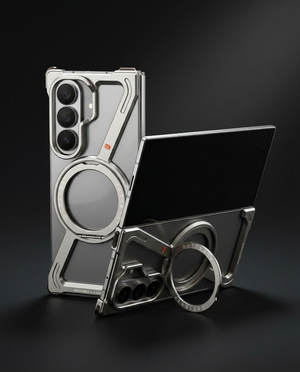
With Android holding 71% of the global market share and 65% of foldable owners in the US and UK using backup apps weekly, physical protection has become a major part of data security. Users with these high-end devices understand the risks, which is why accessories like FoldifyCase's hinge-cover cases and ion glass protectors are so essential for safeguarding phones during frequent data exports.
Once you have a backup file, think carefully about where you store it. If you're uploading it to a cloud service like Google Drive or Dropbox, make sure that account is locked down with a strong, unique password and two-factor authentication (2FA). This adds a crucial security layer, making it much harder for anyone else to get to your archived messages.
Always remember that your digital footprint is valuable. When downloading and transferring your text messages, it's crucial to understand how to best protect your personal information online, ensuring your private conversations remain secure.
Post-Transfer Cleanup and Management
Your job isn't done once the transfer is complete. Good data hygiene is critical for making sure old conversations don't come back to haunt you.
Here are a few quick post-export steps I always recommend:
- Securely Delete Temporary Files: If you saved a backup file to your computer's desktop or downloads folder, delete it for good once you've moved it to its final, secure location. Don't just leave it sitting there.
- Manage Your Archives: Don't be a digital hoarder. Periodically go through your archives and delete old backups you no longer need. This minimizes your risk if one of your storage locations is ever compromised.
- Log Out of Services: If you used any PC software to help with the transfer, make sure to disconnect your phone and log out of the application when you're finished.
By thinking about security at every step—before, during, and after you download your texts—you can be confident that your personal information remains exactly that: personal.
Common Questions About Backing Up Android Texts
Whenever I walk someone through how to download texts from Android, the same few questions always surface. Getting the little details right is what separates a perfect backup from a frustrating, incomplete one. Let's tackle the most common worries to make sure your export is a complete success.
After all, you want to save everything—from treasured photos to critical conversations.
How Do I Make Sure Pictures and Videos Are Included?
Let’s be honest, the texts are only half the story. The photos, videos, and GIFs sent back and forth are often the real memories you want to keep. Losing them is a huge concern.
Thankfully, most good backup tools know this. They handle both SMS (text-only) and MMS (multimedia messages). The trick is to make sure you’ve enabled the right option before you start.
For instance, if you're using an app like SMS Backup & Restore, dive into its settings. You’ll find an option like "Include MMS" or "Back up MMS messages." The same goes for PC software like Droid Transfer; look for a checkbox to include attachments. Toggling this on is absolutely critical. Skip it, and you'll end up with a text-only file, missing all your favorite media.
Always do a quick settings check before starting a backup. That one click can be the difference between a complete archive and a text-only file that’s missing all the good stuff.
Can I Download Texts from a Phone with a Broken Screen?
This is a tough spot to be in, and the answer is a firm "it depends." If the screen is dead but the phone still turns on, you might have a shot—but only if you enabled USB debugging before the accident.
PC-based software can often still talk to your phone over a USB cable as long as debugging mode was already on. This allows the software to get the permissions it needs to access your data, completely bypassing the broken screen. You can pull your messages right off the device.
But if USB debugging was turned off, you're likely out of luck. There's no way for your computer to get permission to access the phone's internal storage. And if the phone is completely dead and won't power on at all, your only remaining hope is a professional data recovery service. Be warned, this can get expensive and there's no guarantee of success.
Will These Methods Work with My Messaging App?
With so many different phone manufacturers, it's natural to wonder if these methods will work on your specific device. The good news is, yes, they almost certainly will.
The tools and techniques we’ve covered are designed to pull from the core messaging database on your phone. This is the standard system used by the most popular default apps out there.
This includes the big two:
- Google Messages: The go-to app on Google Pixel phones and the default on many other Android devices.
- Samsung Messages: The standard app on the entire Galaxy family, from flagships like the S-series to all the foldables.
As long as you’re using your phone’s default SMS/MMS app, you can be confident that these backup solutions will find and export your conversations without a hitch.
At FoldifyCase, we know protecting your digital life is just as important as protecting your device. Find the perfect premium case and accessories for your foldable phone at FoldifyCase.
Shop FoldifyCase foldable phone cases
Precision cases for Galaxy Z Fold & Z Flip — full MagSafe, S-Pen ready, zero bulk.