

Android Tips: android keep screen on to Stop Dimming
It’s one of those little frustrations that can completely derail your focus. You’re at a job site, trying to reference a critical blueprint on your Galaxy Z Fold, and poof—the screen goes dark. For many of us, an unexpected screen timeout is a workflow killer, forcing you to constantly tap and unlock your device just to keep going.
This guide tackles that exact problem. We’ll walk through every method to keep your Android screen on, turning a default annoyance into a powerful productivity setting.
Why a Dimming Screen Disrupts Your Workflow
An abrupt screen timeout is more than just inconvenient; it breaks your concentration. It doesn't matter if you're a professional multitasking on-site or a home chef with messy hands following a complex recipe. Every time that screen dims, you lose momentum. This can lead to errors and wasted time, especially when your hands are full.
Let's be real, we're using our phones for everything these days. The global average for daily screen time recently hit 3 hours and 16 minutes, with some countries easily pushing past 5 hours. That huge increase shows exactly why we need better control over screen timeouts, especially for apps that demand constant visibility.
This decision tree breaks down some of the most common situations where you might need to keep your screen active.
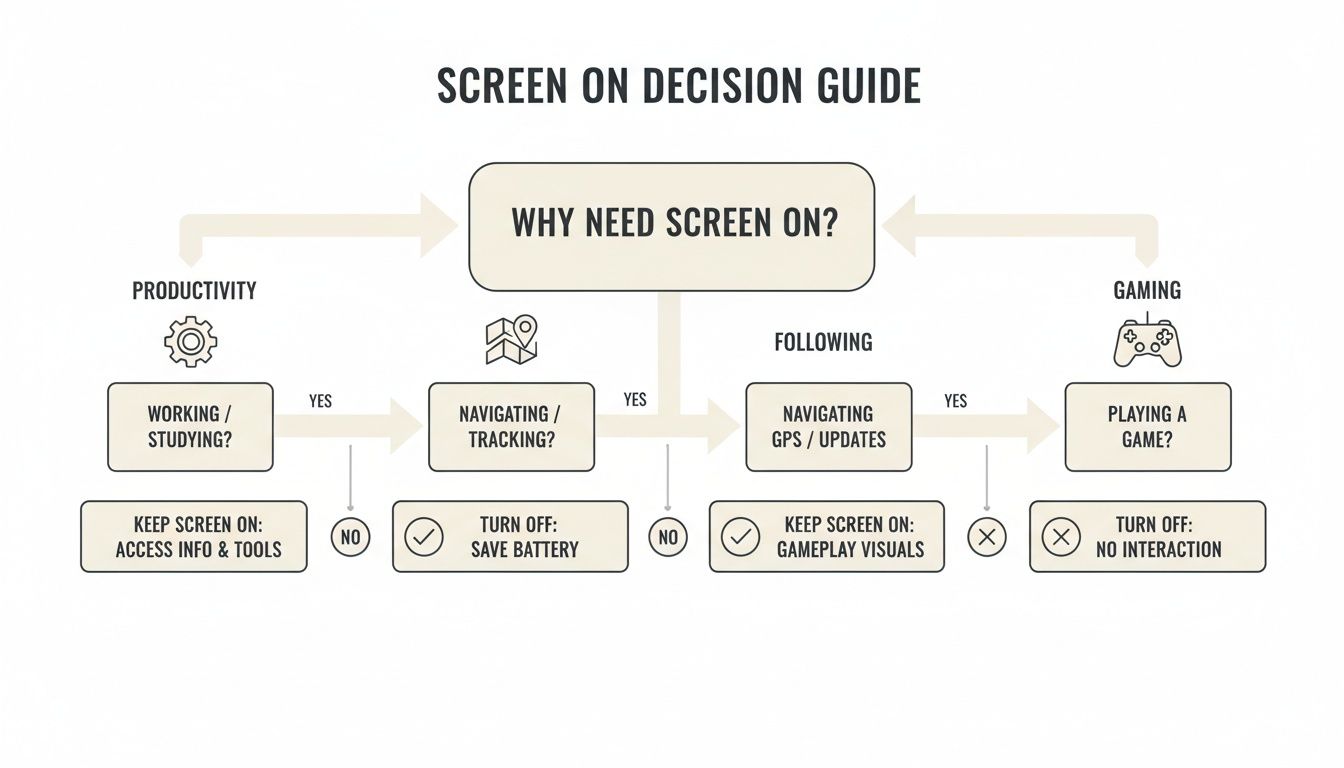
As you can see, whether it's for getting work done, following instructions, or just kicking back with some entertainment, having control over your screen-on time is key to a smooth experience.
The core issue isn't just about convenience. It's about taking back control over your device's behavior so it actually matches your real-world tasks. An always-on screen, when used right, turns your phone into a much more reliable tool.
Of course, keeping the screen on constantly will have an impact on your battery. It's a good idea to learn some tricks for how to extend your phone's battery life to balance out this newfound freedom. And while an active screen is important, an equally crucial part of a smooth workflow is the ability to maintain a spotless display.
From built-in Android settings to powerful third-party apps, we’re about to dive into every practical method at your disposal.
Methods to Keep Your Android Screen On At a Glance
Feeling a bit overwhelmed by the options? Don't be. This table gives you a quick summary of the different approaches we'll cover, helping you pinpoint the best solution for your specific needs right from the start.
| Method | Best For | Ease of Use | Battery Impact |
|---|---|---|---|
| System Display Timeout | Simple, temporary adjustments for everyday use. | Very Easy | Low |
| Developer Options | Charging docks, development, or keeping the screen on while plugged in. | Easy | High (while charging) |
| Per-App Permissions | Forcing specific apps like maps or e-readers to stay awake. | Easy | Medium |
| Third-Party Apps | Granular control with custom rules, timers, and shortcuts. | Moderate | Varies |
| Automation | "Set and forget" rules based on location, Wi-Fi, or time. | Advanced | Medium |
Each method has its place, and the right one for you really depends on what you're trying to accomplish. Let's get into the details of each one.
Adjusting Your Built-In Display Settings
The simplest fix for a screen that dims too quickly is already built right into your phone. Before you even think about downloading third-party apps or digging into complex menus, this should always be your first stop. It's the perfect quick fix for those everyday moments, like keeping a recipe visible while you're cooking or a shopping list open at the grocery store.
Getting to this setting is pretty straightforward, though the exact wording can change slightly depending on who made your phone.
- For Google Pixel phones: Head to Settings > Display > Screen timeout.
- For Samsung Galaxy devices: You'll find it under Settings > Display > Screen timeout.
From there, you can usually push the timeout to 5, 10, or even 30 minutes. For many people, this simple adjustment is all that's needed to solve the problem.
Going Beyond Basic Timeout Settings
Many modern Android phones, especially from Samsung, have some clever tricks up their sleeve. Dive back into your display settings and look for an option called "Keep screen on while viewing" or something similar.
When you turn this on, your phone uses its front-facing camera to see if you're actually looking at the screen. As long as it detects your face, it overrides the standard timeout and keeps the display lit. It's a fantastic, battery-friendly way to keep your Android screen on without having to constantly toggle settings. This is a game-changer for reading long articles or documents.
By the way, if you're having issues with screen orientation, you might find our guide on fixing a broken auto-rotate on Android helpful: https://www.foldifycase.com/blogs/news/auto-rotate-android-not-working
This built-in feature is your best first line of defense against an overeager screen lock. It directly tackles the common frustration of a screen dimming right when you need it most.
While the default timeout can be as short as 30 seconds, some users have complained that the lock screen itself can feel even faster. This has been a long-running headache for Android users, which is why tweaking these display settings is such a crucial first step. You can find years of user discussions about this very topic over in the Android Central forums.
Using Developer Options to Stay Awake While Charging
Sometimes, the standard 30-minute screen timeout just doesn't cut it. For those moments, Android has a powerful, hidden feature tucked away for more advanced users called Stay awake. You'll find it inside the Developer Options menu, and it does exactly what its name suggests—it keeps your Android screen on indefinitely, with one important catch: it only works while your phone is plugged in and charging.
This is a total game-changer for certain situations. Think about mounting your foldable phone on a charging stand to act as a dedicated smart home dashboard. Or imagine keeping your navigation app perfectly visible during a long road trip without ever having to poke the screen to wake it up. For developers, it's an absolute must-have for monitoring how an app behaves over time without the device constantly going to sleep.
Unlocking Developer Options Safely
Before you can flip that switch, you have to unlock the menu itself. Don't worry, this is a simple and completely reversible process that phone enthusiasts have been using for years.
- First, open up your phone’s main Settings app.
- Scroll all the way down to About phone and give it a tap.
- Next, find and select Software information.
- Now, locate the Build number and start tapping on it seven times in a row. You'll see a little pop-up message counting down your taps. After the seventh tap, you might be asked to enter your PIN to confirm.
That's it! A new "Developer options" menu will now appear in your main Settings list, usually right at the bottom. Head into that new menu, and you'll find the Stay awake toggle ready to be turned on.
Crucial Warning for OLED/AMOLED Screens: While this feature is incredibly useful, leaving a static, unchanging image on an OLED or AMOLED screen for hours at a time can lead to permanent screen burn-in. Use the Stay awake feature wisely, especially with apps that have persistent UI elements like status bars or navigation buttons that don't move.
This method is obviously best when you're near a power source, and a decent one at that. To make sure your device is actually gaining battery while the screen is on, pairing it with a quality power brick is a smart move. A compatible Samsung 45W super fast charger can easily keep your device topped up during these extended-use sessions.
Gaining Total Control with Third-Party Apps
When the built-in Android settings just don't cut it, the Google Play Store is your next best friend. If you need more flexibility than what Developer Options can offer, dedicated third-party apps give you pinpoint control over exactly when and how your screen stays on.
These tools are built to solve the specific annoyances that native Android settings often miss. For example, apps like Caffeine or Screen Alive can add a simple toggle to your Quick Settings panel. With a single tap, you can force the display to stay awake for a few minutes or until you turn it off, all without digging through menus.
Why Choose a Dedicated App
The real magic of these apps is their ability to create custom rules. You can tell them to keep the display active only when certain apps are running, which is a total game-changer for practical use.
Think about these real-world scenarios:
- For navigation: The screen never times out while Google Maps is front and center.
- For reading: Your display stays lit as long as you have your Kindle or favorite e-reader app open.
- For everything else: Your phone goes back to its normal 30-second timeout.
This per-app approach is far more practical than a blanket setting. It saves battery while giving you convenience exactly where you need it most.
Heads up: When you install one of these apps, it will probably ask for permission to "display over other apps" or modify system settings. You’ll need to grant these for the app to work, but always stick to well-reviewed apps from trusted developers to keep your device secure.
These apps operate by using something called a wakelock, which is a command that tells the Android system to keep the CPU and screen awake. It's powerful, but it's important to use apps that manage wakelocks responsibly to avoid draining your battery. For those of us with foldable phones, many of these tools also have specific settings to control screen behavior when the device is opened, offering a level of command the stock system simply can't match.
Automating Screen-On Time for Specific Tasks
Manually fiddling with display settings is fine in a pinch, but the real power move is teaching your phone to manage its own screen timeout. Automation tools let you build custom, hands-free rules that adjust your display based on what you’re doing. This is the ultimate "set and forget" approach to keeping your screen on when you need it.
For example, if you have a Samsung phone, you've got a powerhouse tool called Modes and Routines built right in. This app lets you create simple "if this, then that" scenarios. Imagine setting up a routine where connecting to your car's Bluetooth and opening Google Maps automatically bumps the screen timeout to the max. The moment you disconnect, it flips right back to your normal, battery-saving setting.
Building Practical Automations
This level of control goes way beyond a simple timer. You can design workflows that perfectly match your daily habits. No more fumbling with settings when your hands are full or you're deep in concentration.
Here are a few practical ideas you can build from scratch:
- The Commuter Rule: If your phone connects to your car’s Bluetooth between 7 AM and 9 AM, then set the screen timeout to 10 minutes and open your favorite podcast app.
- The E-Reader Mode: If you open a specific reading app (like Kindle or a PDF viewer), then set the screen timeout to 30 minutes.
- The Workout Assistant: If you open your fitness tracking app, then keep the screen on indefinitely until the app is closed.
By creating these custom triggers, you're not just telling your phone to keep the screen on; you're telling it to anticipate your needs. This is where your device goes from being a passive tool to an active assistant that adapts to what you're doing.
For anyone wanting to take things even further, third-party apps like Tasker offer almost limitless possibilities. It definitely has a steeper learning curve, but Tasker can control nearly any setting on your phone based on a huge range of triggers—your location, the time of day, which Wi-Fi network you're on, or even the orientation of your phone. It's the perfect tool for power users who want to craft incredibly detailed automations that stock Android just can't match.
Frequently Asked Questions
Here are some quick answers to the questions that pop up most often when you start messing with your phone's screen timeout. It's good to know the trade-offs before you make this a regular habit.
Will Keeping My Screen On Permanently Damage My Display?
It's a real possibility, especially if you have an OLED or AMOLED screen. Leaving a static, unchanging image on the display for hours at a time can lead to permanent screen burn-in.
Think of it this way: using an android keep screen on feature is safest with apps where the on-screen elements are always changing, like a navigation app showing your live route. Using the "Stay awake" developer option to stare at a static webpage for hours? That's asking for trouble.
Does This Feature Drain the Battery?
Absolutely. There's no getting around it—your phone's display is its single biggest power hog. Keeping it lit up indefinitely will chew through your battery life noticeably faster than normal.
This is exactly why Android's built-in "Stay awake" option only works when your device is plugged in and charging. If you need the screen to stay on while you're out and about, you'll have to play a constant balancing act between convenience and having enough juice to last the day.
Keep in mind that a constantly lit screen generates more heat, which can also affect long-term battery health. Moderation is key to preserving your device's lifespan.
Why Does My Screen Turn Off When I Close My Galaxy Z Fold?
That's not a bug; it's a core feature of every foldable phone on the market. These devices are packed with precise sensors that detect when the hinge is closed, and that action is designed to override most "keep screen on" settings. It's a critical function for saving power and preventing accidental screen taps while the phone is in your pocket.
However, you can usually tell your phone to keep specific apps running on the smaller cover screen after you close it. Dive into your phone's settings, typically under Display, and look for an option called something like "Continue apps on cover screen" to pick which apps should stay active.
At FoldifyCase, we understand the unique demands of foldable phone users. From durable cases with hinge protection to essential accessories like super fast chargers and screen protectors, we have everything you need to protect and get the most out of your device. Find the perfect gear for your foldable at https://www.foldifycase.com.